Make Sense of Your Health Information
Organize medical documents, ask questions in your language, and receive a personalized wellness summary designed to help you better understand your health information. Educational only — not a medical device.
Reduce Confusion
Better understand reports, documents, and health-related information.
Stay Organized
Keep important health information together in one place.
Be Better Prepared
Generate summaries that can help you prepare for healthcare discussions.


Health Information Is Often Difficult to Manage
Medical documents, test results, discharge summaries, prescriptions, and notes can quickly become overwhelming. heartcheckapp helps organize information and transform it into a structured wellness summary that is easier to review and understand.
Why People Use heartcheckapp
The challenge is rarely a lack of information. The challenge is making sense of it.
Too Many Documents
Reports, lab results, imaging summaries, and discharge letters often live in different places and formats.
Confusing Medical Language
Healthcare information can be difficult to understand without spending hours researching unfamiliar terms.
Preparing Questions
Many people struggle to remember what they wanted to discuss during healthcare appointments.
Health Anxiety
Endless internet searches can create more uncertainty rather than greater understanding.
Organized Wellness Summary
Receive a structured report designed to consolidate information into a consistent format.
Simple Guided Experience
No prompt engineering. No technical knowledge. Just follow the workflow.
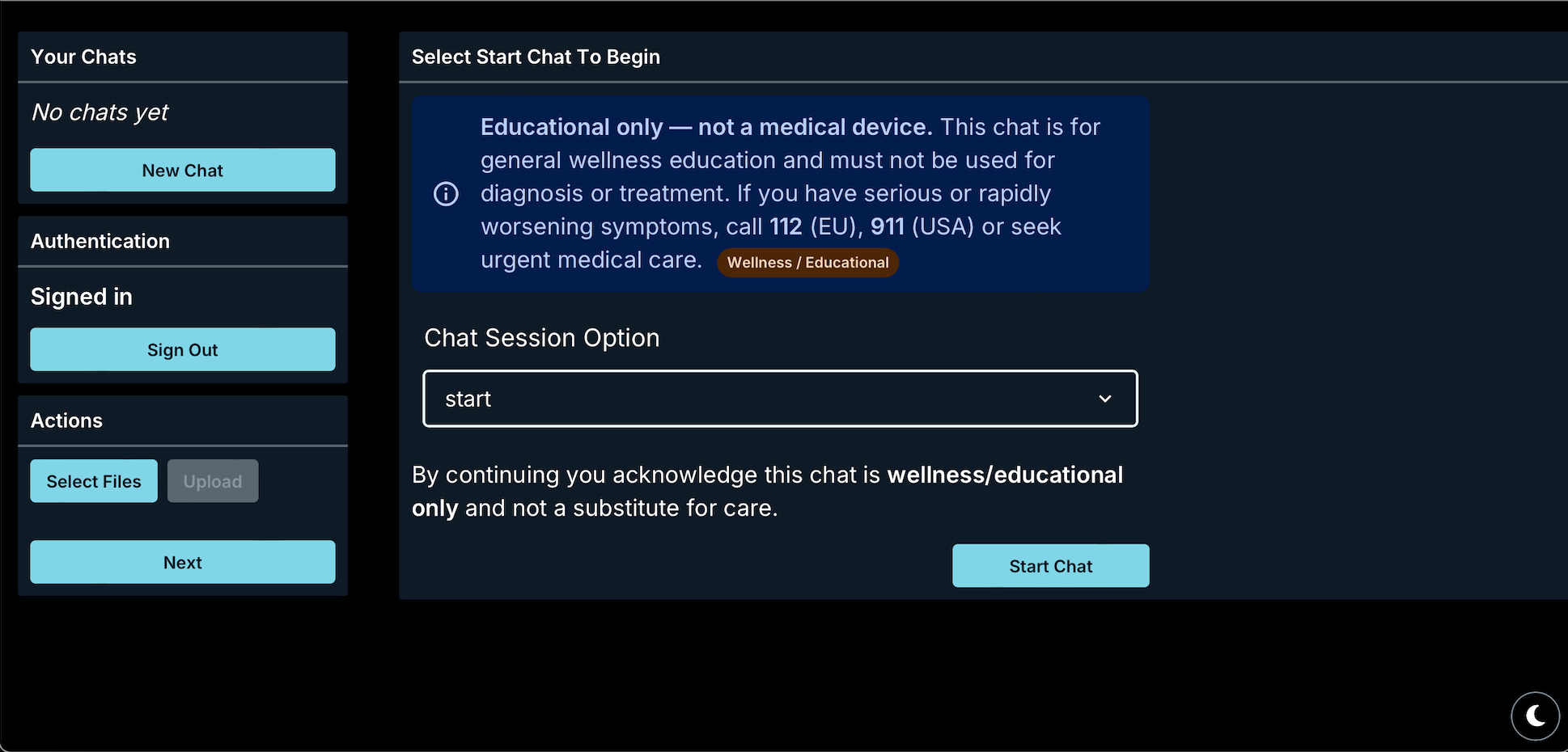
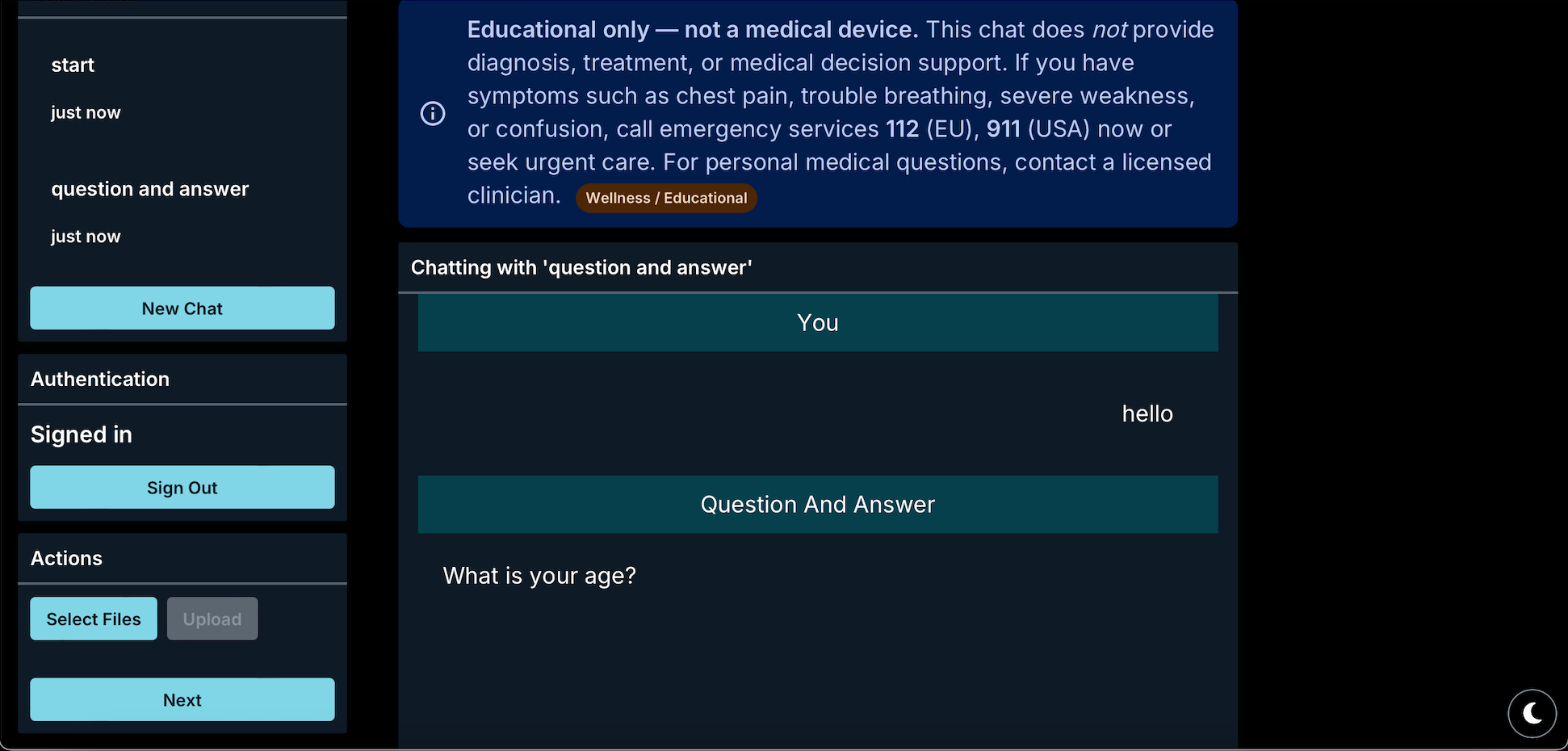
Guided Chat Workflow